How to install Grub Customizer on Fedora 17 ?

  • 0
1. Download .rpm file from here - http://mirror.yandex.ru/fedora/russianfedora/russianfedora/free/fedora/updates/17/x86_64/grub-customizer-2.5.7-1.fc17.R.x86_64.rpm

Right click on the downloaded file and click on Install.

How to install plugins needed for complete multimedia playback on Fedora 17 ?

1. Add RPMFusion Repo in Fedora 17:
sudo yum localinstall --nogpgcheck http://download1.rpmfusion.org/free/fedora/rpmfusion-free-release-stable.noarch.rpm http://download1.rpmfusion.org/nonfree/fedora/rpmfusion-nonfree-release-stable.noarch.rpm

2. Install plugins needed for media playback:

sudo yum install -y gstreamer gstreamer-plugins-good gstreamer-plugins-bad gstreamer-plugins-ugly libdvdread libdvdnav lsdvd xine-lib xine-lib-extras xine-lib-extras-freeworld xine-ui xine-ui-skins vlc smplayer gnome-mplayer audacious audacious-libs audacious-plugins audacious-plugins-freeworld audacious-plugins-freeworld-aac audacious-plugins-freeworld-ffaudio audacious-plugins-freeworld-mp3 flash-plugin nspluginwrapper alsa-plugins-pulseaudio libcurl xbmc

How to install VirtualBox 4.1 on Fedora 17.

If you have installed RPMfusion repo, please disable that from going to add/remove software -> sources.


1. sudo yum -y update kernel
2. sudo yum install -y wget
3. wget http://download.virtualbox.org/virtualbox/rpm/fedora/virtualbox.repo
4. Move the  downloaded file "virtualbox.repo" to "/etc/yum.repos.d/"
5. yum install -y gcc kernel-devel dkms
6. yum install -y VirtualBox-4.1
7. /etc/init.d/vboxdrv setup ## OR ## service vboxdrv setup
8. usermod -a -G vboxusers $your_user_name

Fix probelems:

1. Check kernel header version and kernel version matches each other.
rpm -q kernel
rpm q -kernel-header

2. After installing VirtualBox please restart.


Note : If you are on fedora 17 and did not updated the kernel (The default kernel on Fedora 17 is kernel-3.3.4-5.fc17.x86_64) yet then you will need to run this :

sudo yum install kernel-devel-3.3.4-5.fc17.x86_64

Best audio recording and editing software for Windows ?

  • 0
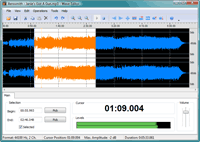
If you are in seacrh of a better alternatice to "Audacity" then "Wavosaur" is perfect for you. "Audacity" can not open or edit mp3 files directly, where as "Wavosaur" can. Moreover Wavosaur have faster start-up and it do all small editing jobs (like - amplifying tracks, fade in/fade out,cutoff portions of media etc) fine.

"Wavosaur" supports recording, but if you want a better recorder then the free choice is "WavRec". "WavRec" can record your Microphone and Speakers and save the file in .wav format (Only .wav is supported by WavRec).


Another freeware choice is Wave Editor. It is similar to "Wavosaur" but lacks many functionality (Recorder is not available).


Best powerful, professional Video Editors for Windows PC. Best Video Editor to Trim, Watermark and Lighten-Up Dark Videos.

  • 7
  • AVS Video editor and AVS Video Remaker: 

If you want to do simple video edits like - joining two videos, watermark a video,  add simple effects like brightness control, fix a shaky video, etc then "AVS video Editor" will be a viable choice for you.

If you want to trim a video but don't want to loose the quality or the size then "AVS Video Remaker" will be your best choice.


Download Link: http://www.avs4you.com/AVS-Video-ReMaker.aspx

  • Camtasia Studio:

Another video editor I will recommend is "Camtasia Studio". The best thing about this editor is, the production (Encoding) time of any video is very fast, faster than AVS Video Editor.  Takes less RAM. Works perfectly with a CPU like Dual Core.


Download Link : http://www.techsmith.com/download/camtasia/default.asp